
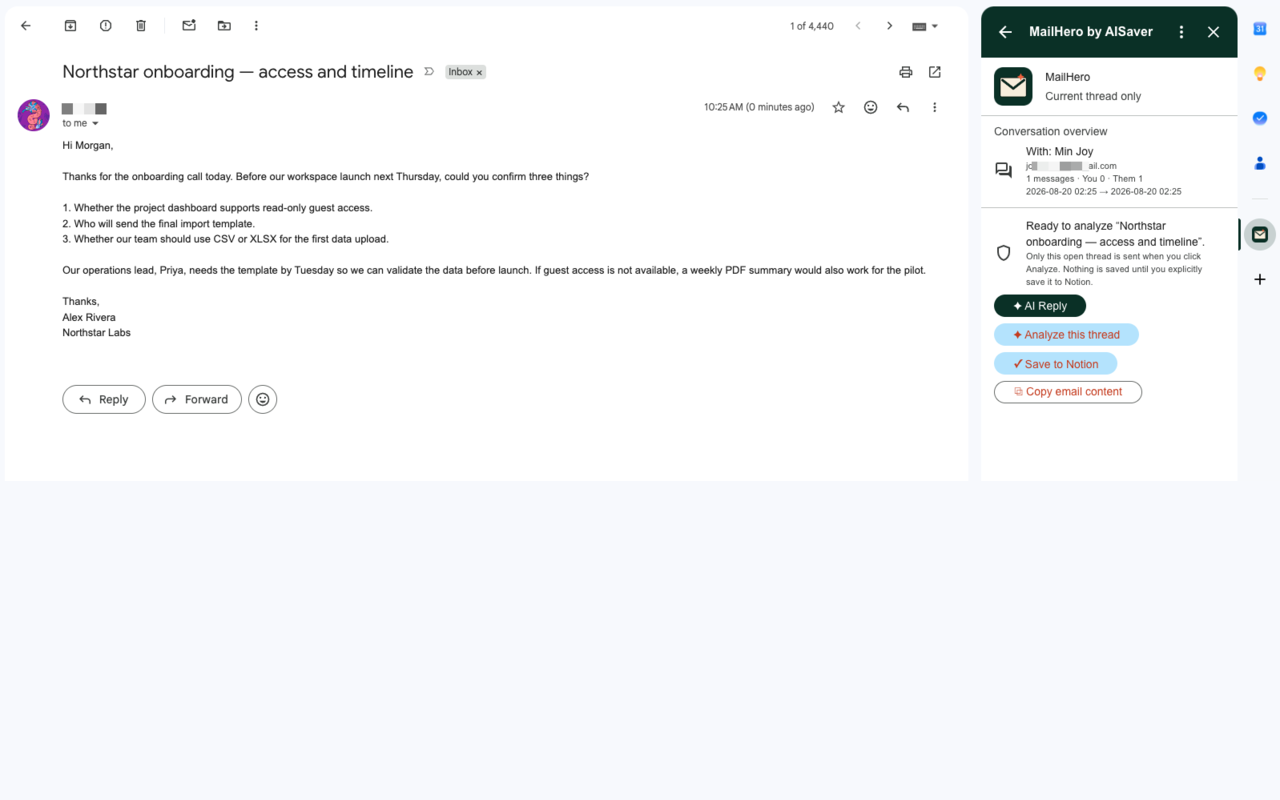
MailHero is designed around one small boundary: the thread you explicitly open. There is no inbox scan to configure and no background triage queue to maintain.
Once the side panel is open, the conversation overview gives you the shape of the thread before any AI action starts.
1. Open the conversation you want to work on
Open a Gmail thread, then launch MailHero from the right-hand panel. You will see the participants, message count, and timeline so you can orient yourself before asking for help.
2. Choose the smallest useful action
For a complex thread, choose Analyze this thread to create a Case Brief. For a simple response, choose AI Reply and go straight to a draft workspace. Saving to Notion is always a separate, explicit action.
3. Review before anything leaves Gmail
MailHero creates a Gmail draft; it never sends automatically. Edit the text, adjust the reply settings, translate when needed, and send only when the message sounds like you.
A useful default
Start with the whole conversation when the thread contains decisions or hand-offs. Switch to only the latest message when the context is obvious and you want a fast, focused response.